Why Proper Adjustment Matters
An ergonomic chair is only as good as its setup. Many people never adjust their chair beyond the factory defaults, which defeats the whole purpose. A ₹15,000 ergonomic chair sitting at factory defaults can easily give you less support than a ₹5,000 chair that you’ve actually set up correctly.
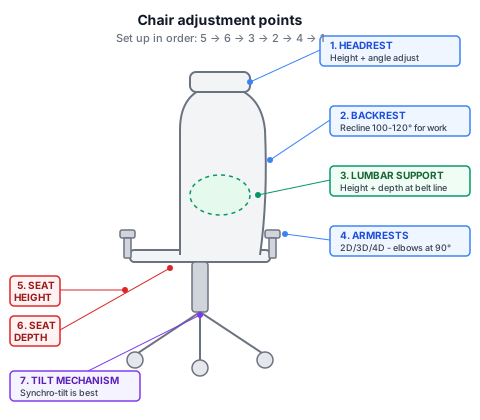
Step 1: Seat Height
Get this right first - everything else builds on it.
- Stand next to the chair and adjust the seat height to just below your kneecap
- Sit down with feet flat on the floor
- Check that your thighs are roughly parallel to the floor (slight downward slope is acceptable)
- Your knees should form approximately a 90-100 degree angle
Rule of thumb: a workable seat height often lands at roughly one-quarter of your height, but treat this as a starting point rather than a fixed formula.
At a standard Indian desk (72-75 cm), your elbows should rest at desk height when your upper arms hang naturally at your sides.
Step 2: Seat Depth
If your chair has a seat depth slider:
- Sit fully back against the lumbar support
- Slide the seat pan forward or backward until there are 2-3 finger widths (5-7 cm) between the front edge and the back of your knees
- The seat should support at least 75% of your thigh length
If the seat is too deep and there’s no slider, just place a lumbar cushion behind your back - it shortens the effective seat depth.
Step 3: Lumbar Support
- Locate the lumbar adjustment - it may be a height knob, a depth dial, or both
- Adjust the height so the firmest part of the lumbar pad aligns with the inward curve of your lower back (typically at belt level, around L3-L4)
- If there’s a depth adjustment, set it so you feel firm support without being pushed forward
- You want the lumbar to maintain your natural spinal curve, not exaggerate it
Step 4: Backrest Recline
- Set the recline to a slight backward angle for productive desk work rather than forcing a perfectly upright posture
- Ensure the backrest supports you throughout the recline range
- If your chair has a tension control, adjust it so the backrest provides resistance without requiring effort to maintain your working position
- Lock the recline if your chair has a multi-lock feature, or use synchro-tilt for dynamic sitting
Don’t force yourself into a rigid 90-degree upright posture. A slight recline actually reduces the load on your spine - sitting bolt upright is harder on your back than leaning back just a bit.
Step 5: Armrests
- Adjust height so your forearms rest parallel to the floor with shoulders completely relaxed
- If width-adjustable, set so elbows are directly below the shoulders
- If depth-adjustable, position so forearms are supported during typing without reaching forward
- Armrests should not contact the desk edge - this prevents pulling the chair close enough
A very common mistake is setting armrests too high. This forces your shoulders up and creates tension in the trapezius muscles - you’ll feel it as tightness at the base of your neck by the end of the day.
Step 6: Headrest (if present)
- Adjust height so the center of the headrest aligns with the middle of the back of your head
- Angle the headrest to provide gentle contact without pushing the head forward
- The headrest should support the occiput (back of skull), not the neck
Verification Checklist
Once you’ve gone through all the steps, run through this quick check:
- Feet flat on floor (or footrest)
- Thighs parallel to floor or slightly angled down
- Lower back curve maintained by lumbar support
- Shoulders relaxed, not elevated by armrests
- Screen at arm’s length, top at or below eye level
- Elbows at approximately desk height
- 2-3 finger widths behind knees to seat edge
FAQ
How often should chair adjustments be revisited?
Check your setup every 2-4 weeks for the first few months, then once a quarter or so. You’ll get better at noticing what feels off over time, and small tweaks can make a real difference. Also revisit your adjustments whenever you change your desk height or monitor position, or if new aches start showing up.
Should the chair be adjusted differently for laptop vs. monitor use?
Yes - laptops are tricky because the screen and keyboard are stuck together. The best fix is an external keyboard with a laptop stand so you can get the screen at eye level without wrecking your wrist angle. If you’re using the laptop directly, adjust your chair to prioritize typing posture (elbows at desk height) and use only a slight forward lean if needed. It’s a compromise, not ideal, but it works.
What if two adjustments conflict - for example, seat height for the desk vs. feet on floor?
If your desk is too high - meaning your feet can’t reach the floor when your elbows are at the right height - get a footrest. It raises the “floor” to meet your feet. If the desk is too low, lower your chair to keep the right knee angle and raise the monitor separately. The real fix, of course, is adjusting the desk itself with risers or a sit-stand desk.